Happy ERP User Guide
A Lao-first system for running an online shop — for merchants selling on Facebook Live · Messenger · TikTok. Read it in order, or jump to the section you need. Everything works on a phone, and you need a connection for changes to save.
✦The Happy family — three tools, one shop
Back office · AI staffer · content studio — all three speak Lao and share the same shop data. Tap one for details:
 Happy ERP — the back office
Orders · live CF · BCEL slips · stock · POS · CRM · Lao couriers & COD · tax — in one system
Happy ERP — the back office
Orders · live CF · BCEL slips · stock · POS · CRM · Lao couriers & COD · tax — in one system
 Happy AI — the AI staffer
Answers from real prices/stock — web chat and Telegram now · Messenger/CF once the Page is connected (pending Meta app review) · drafts replies you approve · weekly advisor · included in every plan
Happy AI — the AI staffer
Answers from real prices/stock — web chat and Telegram now · Messenger/CF once the Page is connected (pending Meta app review) · drafts replies you approve · weekly advisor · included in every plan
 Happy Studio — the AI studio
Type one Lao sentence, get TikTok/Reels clips · edit/generate images · auto-posting — pulls products straight from the shop
Happy /care — page-care service
An AI team replies round the clock · posts on a plan · ads under control · monthly report from real sales — a human checks everything · for shops on Happy ERP · starts with a free page audit
Happy Studio — the AI studio
Type one Lao sentence, get TikTok/Reels clips · edit/generate images · auto-posting — pulls products straight from the shop
Happy /care — page-care service
An AI team replies round the clock · posts on a plan · ads under control · monthly report from real sales — a human checks everything · for shops on Happy ERP · starts with a free page audit
Already have an agency or an outside admin looking after your Page? Give them safe access in 12c Page-care agency · Want to run your own page-care agency? See Happy Service and the service.happyerp.la guide.
Contents — 31 topics
0Get started in 3 minutes
- Open app.happyerp.la on your phone. The demo data is already there so you can try everything without breaking anything. To use it for real you sign up with an invite code from the Happy team (ask on the Facebook page or at support@happyerp.la) — a new shop starts empty.
- Add your shop: Settings → Shop tab — shop name · phone · address · Messenger page name. These print on receipts and the customer order page.
- Add one real product: Products → + New product — code · name · price · stock. The code is what you type during a live ("CF A3 x2"), so keep it short.
- Create your account: the Sign in / Sign up button in the app header (or Settings → Team & account tab → Account) → Create shop: invite code · shop name · your name · email · password (8+ characters recommended). 14-day free trial. Until you do, data lives only on this phone.
- Not sure what to set up first? Settings opens with a Shop readiness card listing what is still missing (name · phone · address · payment QR · delivery fees · Telegram · 2FA · shop policies for the AI · opening hours · Facebook page …) — tap a line to jump there. Stuck? Help center (💬 report a problem) · System status · Changelog
- Security: turn on 2FA via Telegram (Team & account › Account › Account security) · forgot your password = sign-in screen › Forgot your password? — a reset link (valid 15 minutes) goes to your personal Telegram or the shop's Telegram
New in this version (3.159 · 24 September 2026)
Full list for every version: happyerp.la/en/changelog — the app updates itself, nothing to install.
Previous version (3.125 · 11 September 2026): agents complete · activity · docs
Earlier (3.97 · 3 September 2026)
1Overview
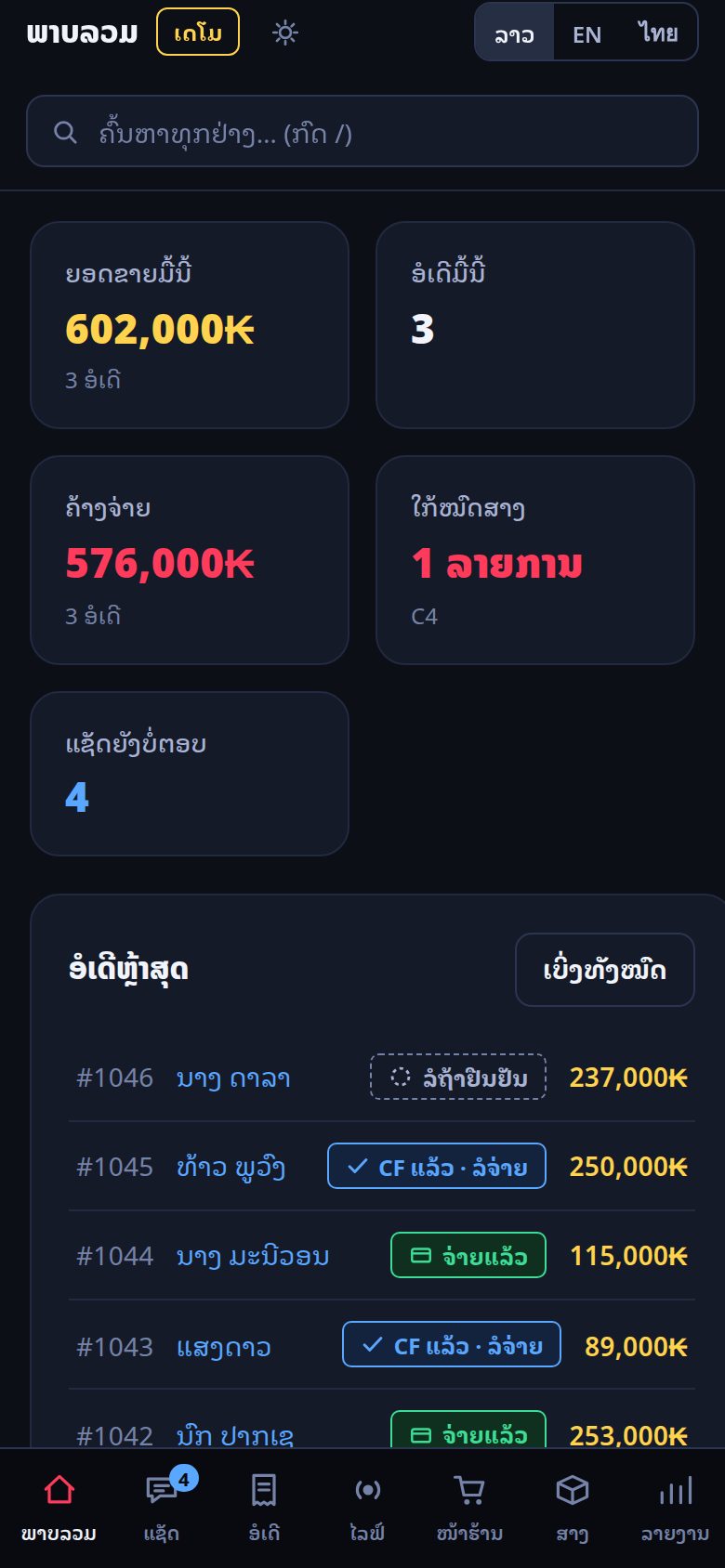
The first screen answers one question: what needs attention today?
- Today's sales — money taken today, in gold because gold always means money in this system
- Unpaid — orders waiting for payment or confirmation, in red when there are any
- Low stock — items at or below the minimum you set, with the codes listed
- Unanswered chats — how many customers are still waiting for a reply
Below that, Today's watchlist lists rows you can tap straight through to the thing that needs fixing — an overdue COD remittance, a slip that failed verification, a customer who has been waiting too long, a parcel the customer says has not arrived.
Sales target — set it in Settings → Marketing → Sales targets (month · branch · staff) and the overview shows the % reached and whether you are on pace. The call queue and COD follow-up live here too (4e).
2Live console — turn CF comments into orders
This is the screen for selling during a Facebook Live. Comments arrive on the left; you turn them into orders without leaving the screen.
- Start your Live on Facebook as usual, then open Live in the app.
- When a customer comments "CF A3 x2" the system reads the product code and quantity, reserves the stock immediately, and creates an order in waiting status.
- Tap the row to confirm, add the phone number and address, and send the confirmation message.
Comments containing a phone number are hidden automatically so a competitor watching your Live cannot collect your customers' numbers.
- Live: ask the customer to confirm (Settings → Selling → Automatic) — the CF holds the stock and the customer is asked privately to confirm; no answer in 15 minutes = released
- The first private reply to a CF comment carries the tracking link · comments that cannot be answered privately get a public reply with a chat link
- Products with per-size prices use the price of the size the customer picked
3Inbox — every Page, one queue
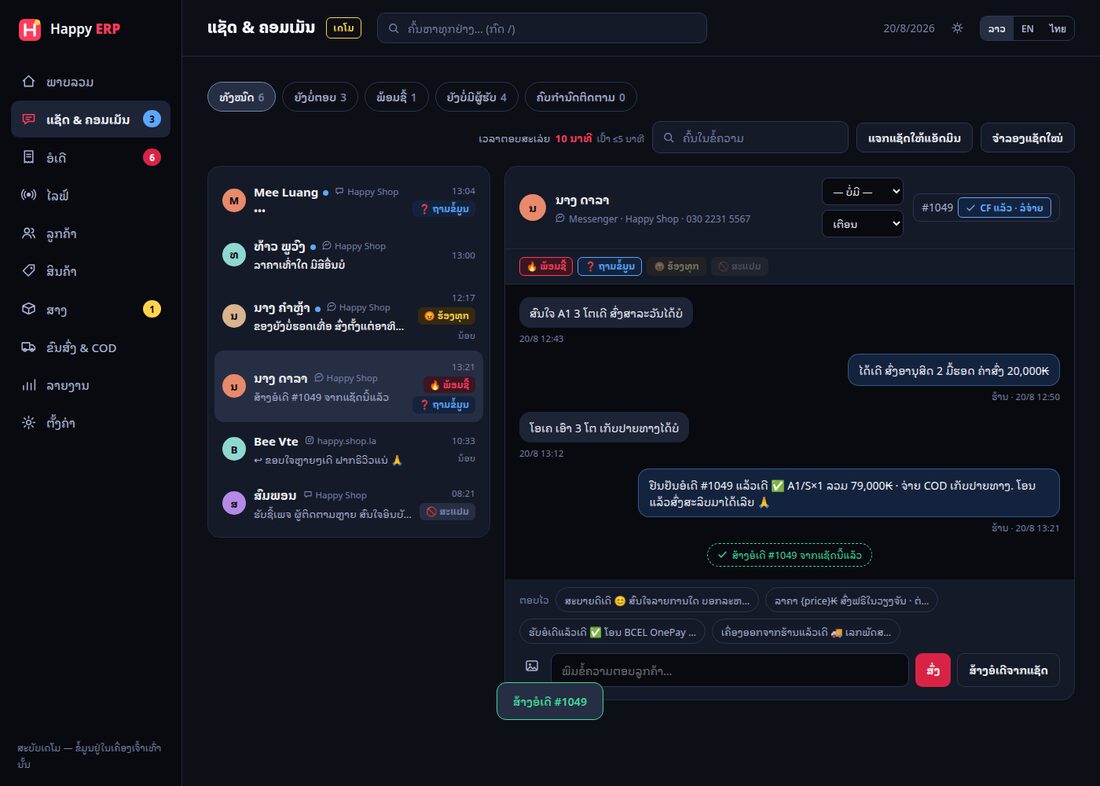
Messenger messages and post comments from all connected Pages arrive in one list, so nothing is missed because it came in on the wrong Page.
- Every channel, one inbox: Messenger + comments (Facebook) · storefront chat (tag web) · Telegram (tag Telegram · section 15)
- Purchase history in the chat: customers who ordered through that chat (Facebook/web/Telegram) show their orders even without a phone number · the customers page no longer counts them twice
- Nobody answering = an alert: assigning a chat notifies that staff member · a customer waiting over 5 minutes with nobody replying (AI off/paused) alerts the shop · pause the bot for a single web/Telegram room from the chat header
- m.me/yourpage?ref=CODE links land in the inbox as “interested in …”, so you know which product they came for
- Tag a conversation ready to buy · asking · complaint so the team knows what it is
- Assign it to a staff member
- Answer with a quick reply you saved earlier — quick replies and shop policies are one set: staff tap them and the AI answers from the same list
- Slip photos: the slip is checked first · photos coming from Facebook need staff confirmation · manual payment approval requires the bank reference (duplicates blocked)
- Create the order inside the conversation — the customer's name and phone carry over
Behind on replies? Tap Ask Happy and the AI drafts an answer from your real prices and stock. You read it, edit it, and send. It never sends by itself unless you switch that on (Settings → Selling tab → Automatic).
🆕 28/8 — customers confirm their own CF. When a buyer types “ເອົາ A1 M” (or sends a product photo with “I'll take this, 2 pcs” — the AI matches the photo against your catalog), the system reserves stock for 15 minutes and sends a card with three buttons: ✅ Confirm order · ✏️ Edit/add items · 🔎 Track. The order only becomes real when the customer confirms — no ghost orders. Unconfirmed holds return to stock automatically and the customer is told. Shops with several Pages can restrict a product to certain Pages and set a per-Page price (product form → “Sold on which pages”). A custom post-order note (thank-you, delivery time, unboxing-video reminder) can be set in Settings → Shop.
3bHappy AI — answers customers around the clock
The AI replies from the server, day and night — you do not need to keep the app open, and it never answers twice. It answers from your prices · real stock · promos · delivery fees and holds stock as soon as a customer types a product code.
- Turn it on: Settings → Selling → Automatic → Let Happy reply to customers (off by default). Channels: storefront chat and Telegram work for every shop · Messenger/CF comments once the Page is connected (pending Meta app review — 12b)
- Teach it: Settings → Selling → What the AI knows & tells customers — policies · opening hours · quick replies + the knowledge field on each product. Empty = the AI does not invent; it asks the owner instead
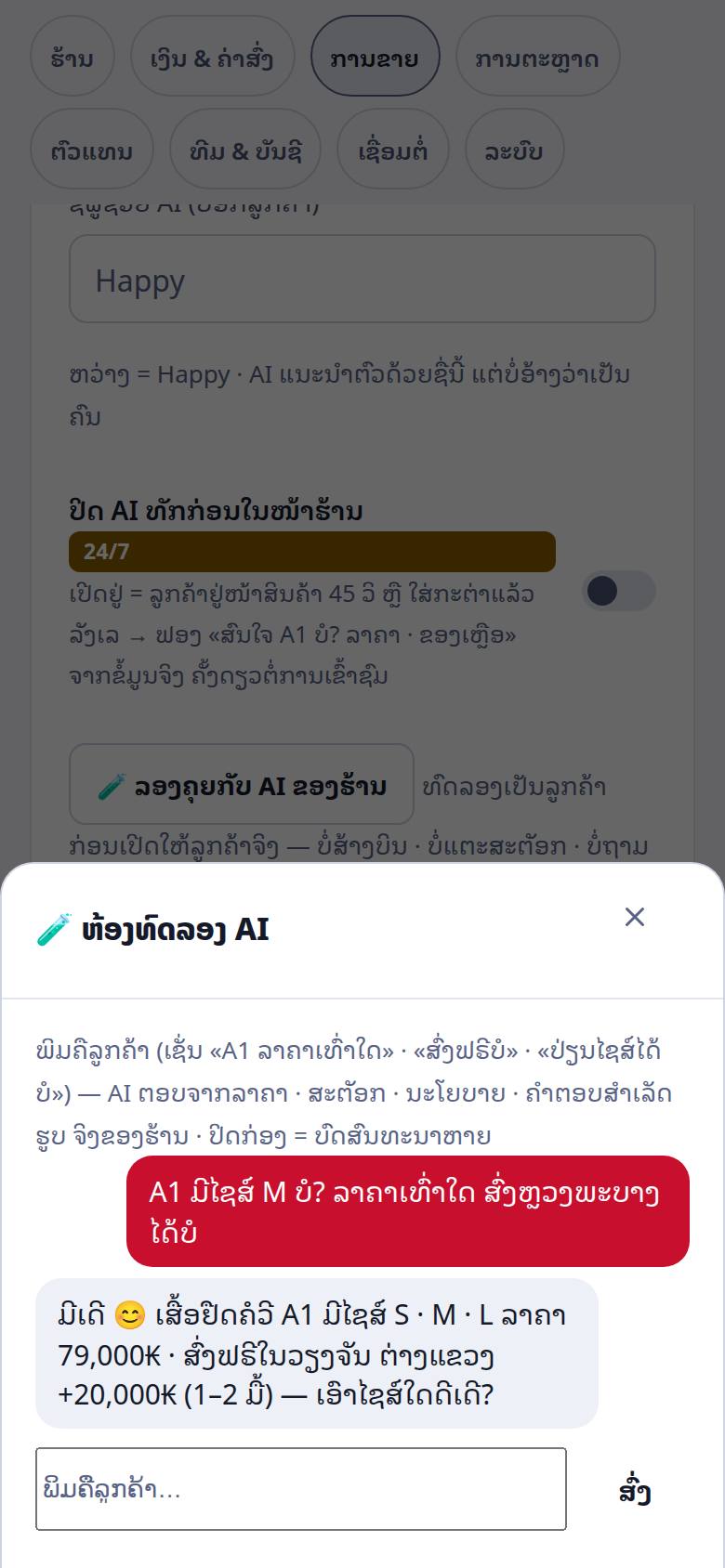
- Try it first: in the same card tap 🧪 Try chatting with your AI and type like a customer (“how much is A1?” · “free delivery?”) — no orders, no stock touched, no real owner questions
- Set money limits: Settings → Selling → AI money rules — maximum discount · refunds it may give on its own · free-shipping threshold. Outside the limits (or 0) the AI asks the owner on Telegram and the answer flows back to the customer
- Keyword rules (Settings → Selling → Keyword rules): a customer types a keyword you set (e.g. delivery fee · opening hours) → instant answer with no AI credit, on every channel · each rule fires once per room per 10 minutes · requests for a human or for photos still go to a person
- Remembers returning customers: last 3 orders · latest address (“same address as last time?”) · products asked about before — across channels · never uses another customer's details (e.g. a gift recipient's phone)
- Greets first on the storefront: 45 s on a product page, or hesitating after adding to cart → one bubble “Interested in A1? price · stock” per visit · switch off under What the AI knows → Turn off AI first-greeting on the storefront
- Daily cap: when the quota is used up the chat header tells customers “an admin will reply” instead of “auto-reply” · chats still reach your inbox · agents' pages have their own cap
- Want to answer a room yourself? Pause the bot for that web/Telegram room in Inbox · a customer waiting over 5 minutes with nobody answering alerts the shop
- Measure it: Reports → Web & Telegram chat — is the AI really working (rooms/day · % closed by AI alone · AI reply time · chat → order · carts recovered · days at the cap)
4Orders
Every order moves through the same states: waiting → CF → paid → packed → shipped → delivered (or cancelled / returned). The state is what drives stock, commission and reports, so keep it honest.
- Filters at the top: all · unpaid · paid · packed/shipped · cancelled, each with a live count
- Select several orders with the checkboxes to change status, print or merge them at once
- Merge two orders from the same customer so they ship as one parcel and one delivery fee
- Print & export (collapsed on a phone): picking list · shipping manifest · CSV
- Ordering again = merged: a customer who orders again by chat/storefront while an earlier bill is unpaid gets it merged into that bill (or a separate bill on request) · totals and delivery recalculate · the merged bill's tracking page links to the new one
- Customers hear about every step (confirmed · paid · shipped + tracking number) on the channel they came from, or by Web Push · customers can cancel their own unpaid order — not after a label is printed or an invoice issued (they must contact you)
- Telegram: shops with their own bot get a ✅ Confirm order button under each new-order message (section 15)
One picking list — collect everything in a single walk
With 20 orders you should not walk the shelves 20 times. Press Picking list on the Orders page and the system merges every order into one list.
- Set shelf locations first (once): Products → the Location column, type A-1 · B-2 to match your real shelves — the list is then ordered along your walking route (A-2 before A-10), and anything without a location goes to the end
- The screen shows location · code/size · product · total quantity, and which orders each line belongs to (for example #7001×2 #7002)
- Press Print picking list — page 1 is the collection list (with tick boxes), page 2 splits it back into one bag per order
- Collect everything once from page 1 → split into bags using page 2 → attach the labels
- When packing is done press Mark packed once (it only marks orders that are paid)
Only orders that are confirmed (CF) or paid and not yet shipped are counted — counter sales (POS) and anything already shipped are not.
4bIn-store sales (POS)
For customers standing in front of you. Scan or type the code, take cash or transfer, print the receipt. The sale deducts from the same stock as online orders, so the two channels can never disagree.
4cOrder page (a link for customers)
Switch it on in Settings → Connections tab and you get a link plus a QR code. Customers open it, pick items, enter name · phone · address, and the order lands in your Orders list — no app to install, no chat needed.
Three languages (since 31 Aug): the order page and the tracking page are available in
Lao, English and Thai. Lao is always the default — we do not guess from the phone's language,
because plenty of Lao people run their phone in English but read Lao. Customers can switch with the
button at the top and the choice is remembered on their own device.
To share an English link directly, add &lang=en to the URL (&lang=th for Thai).
Limit: messages the system sends to customers (order confirmation, status updates) are still in Lao.
- Delivery fee is calculated from the customer's real district, not guessed
- Coupons and loyalty points apply automatically
- Add
?src=to the link to see which channel produced which sales - Your own domain (e.g. yourshop.la instead of shop.happyerp.la): enter it in the same card, point an A record to the IP shown, press Check · https is issued for you · every link (AI chat · tracking · promos) then uses it, re-checked every 24 h — full steps in the domain guide
4dChecking transfer slips
A customer sends a slip photo. Tap Check slip and the system reads the QR code inside the image and asks the bank whether that transfer actually exists.
- Pass — the transfer is real and the amount matches
- Weak pass — the transfer is real but the receiving account is not the one in your settings. Fill in your bank account under Settings → Money & shipping tab to remove this
- Fail — no such transfer. This is how forged slips are caught
4fHappy Shop storefront + order chat
Your own storefront page with a chat panel attached: the customer browses, asks a question, and orders inside the chat without ever opening Messenger.
- The assistant answers price and stock questions from real data
- When the customer says they want it, the system reserves the stock first and shows a confirmation card asking for a phone number — the order is only created once they confirm
- Everything arrives in the same inbox as Messenger, marked web chat
- AI around the clock: with Let Happy reply to customers on, the server answers even when your app is closed · at the daily cap the header says “an admin will reply” (details in 3b)
- Abandoned carts: 30 minutes after a cart is left, one follow-up in the web chat — and a phone notification if the customer allowed them
- Chat link per product: add
?chat=A1to your storefront link (posts · comments · QR) to open the chat with that product filled in · every product card has a 💬 Ask button · the confirm card shows approximate shipping - New phone, same chat: the customer enters the phone they ordered with → a 6-digit code appears on the old phone → typed on the new one, history and orders follow
- Your storefront: ☰ menu in the header (categories · language · 7-step text size) · a real “n people viewing” count (10 min) · recent searches · checkout folds the items into a summary row · storefront colour mode (light/dark) is yours to set · customers can install the shop as an app on their phone
4gLoyalty points and referral links
Points: customers earn 1 point per 10,000₭. You set what a point is worth in kip (Settings → Marketing tab → Loyalty points). 0 = off. Points land once the money is in and the customer has received the goods (not at order time), so cancelled or returned orders never leave points behind. Customers see them on the tracking page and can spend them at checkout, on the tracking page and at the POS.
Referral links (friend brings friend): a customer shares the link from their tracking page. The friend gets a discount; the referrer earns points once the friend's order is paid and received. Self-referral is blocked by phone number, and there is an automatic cap of 10 orders per referrer per month.
4mCampaigns / promotions — 9.9 · 11.11 · New Year
Time-boxed price cuts, set once and applied everywhere — Settings → Marketing → Campaigns / promotions (owner and admins).
- Promo price per product + start/end → the storefront strikes through the old price with a countdown · prices return to normal by themselves · optional limit per customer · a warning before saving a price below cost · templates (Lao New Year · Women's Day 8/3)
- Where it applies: everywhere (storefront · FB/web chat · live · POS) · storefront + web chat only (the AI on Facebook quotes the regular price and sends people to the storefront) · agents only (a special agent price customers never see)
- Volume discount across the campaign's products · gifts (buy X get Y, or spend-and-get — gifts are deducted from real stock; out of stock = no gift, the order still goes through)
- Featuring: pin products to the top without a discount · auto-feature the 30-day best sellers
- Tell customers: a Web Push to customers who opted in when the sale starts · a campaign link for your posts
- Coupons live in the Discount coupons card on the same tab: expiry date (countdown badge near the end) · untick “show on the shop page” for a private code
4hAffiliates — paid in real money
Different from referral links: affiliates are people you choose, and they are paid a percentage in kip, not points.
- Set the default rate, the payout minimum and the payout cycle in Settings → Marketing tab → Affiliates — each shop decides its own
- Each affiliate gets two links: a private earnings page for them, and a shop link carrying their code
- Commission counts only on orders that were actually paid, and never on the delivery fee
- Closing a payout cycle records an expense automatically, so net profit already accounts for it
4iPost to your Facebook Page + post calendar
Post photos · albums · videos · Reels to the Page from inside the app — the Posts menu. The real point: staff can post without being Page admins.
- Pick products first → the caption is drafted from a template (editable) · "AI write" gives 3 variants
- Photos — from product photos · upload · or pick from the library (see 4j)
- Schedule 10 minutes – 30 days ahead · or create a series over several days at once (preview table · shop holidays skipped)
- Several Pages — tick which Pages to post to
- Shop link in the first comment — added for you (not in the post body, so reach doesn't drop)
- Sold out → a "sold out" note is appended to the post automatically
- Post results — reach · clicks · comments · best posting hours suggested
- Comments linked to products from the start ⇒ "I'll take this" comments are recognised by the CF gate immediately
- 📅 Calendar (new 25 Sep): the 📋 List | 📅 Calendar toggle at the top (remembered per device) — a full month coloured by status · tap a day to see its posts · + New post pre-fills your best posting time · step to the previous/next month
- Approval: people with Post rights press Send for approval → people with Approve posts press Approve or Send back with a reason · shops with their own Telegram bot can approve or send back straight from Telegram buttons
- A page-care agency (12c) drafts posts and plans the calendar — you approve · shops managed by Happy /care get a private 📅 Approve this month's posts link in Settings → Shop: opens on a phone with no login, shows drafts with image and time · links expire
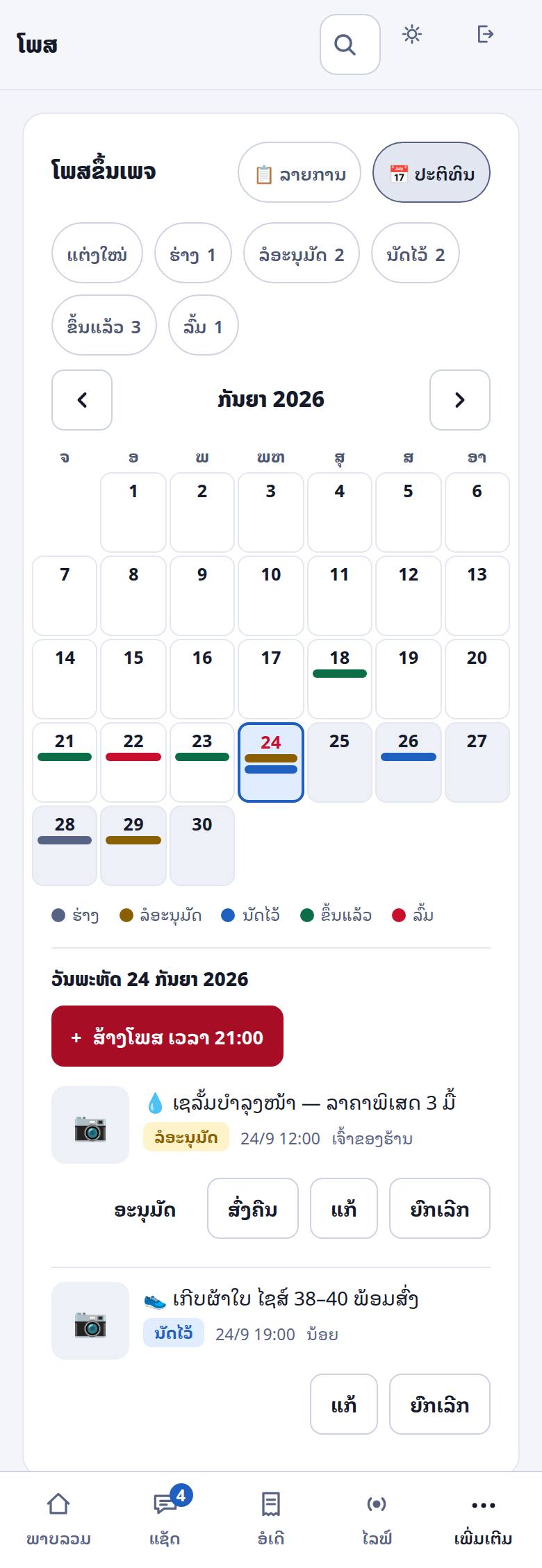
🔑 Per-person permissions — in Settings → Team & account: Post (compose/send) and Approve posts (release to the Page). No permission = the page is hidden entirely. Page tokens stay on the server ⇒ when someone leaves, revoke in the app and you're done.
⏳ "Posting…" on the button = the system is sending — don't press again. On failure the reason is shown and "Retry" is available.
4jMedia library from Studio (new 7 Sep)
Photos and clips made in Studio can be posted from Happy ERP directly — no download/re-upload.
- In super.happyerp.la press "Ready to post" on the photo/clip you want (next to the 📣 button everywhere)
- Back in Posts → Pick from library you see only the marked items
- Files that live on Google Drive are fetched for you before posting — "fetching from library" means wait a moment and press again (nothing is broken)
- Photos and clips both work — clips are fetched in the background first, then uploaded as video/Reels (8 Sep)
📌 "One channel, one owner" — Facebook posts come from Happy ERP only · TikTok/YouTube stay in Studio. Otherwise content goes out twice and nobody keeps the full record.
4kBilling — pay yourself in the app (updated 3 Oct)
Renew your subscription yourself, no waiting for anyone — the Subscription menu (or Settings → System → Subscription & plans) · shop owner only.
- Current prices are shown live at happyerp.la/#pricing and in the Subscription menu — one full plan (monthly · 6 months and 1 year cost less · 1 year = 2 months free) · free trial, no card
- The same AI models on every plan — busy shops are never switched to a cheaper AI model · there is a daily limit on AI replies (see the pricing page; order cards and automatic notices do not count): at the limit the AI pauses, tells the customer and alerts your staff · several Pages can be connected to one shop at no extra charge
- Pro for shops with heavy chat: a higher daily AI reply limit — talk to the Happy team (not sold in the app)
- «Setup + training» one-time: the Happy team sets up your shop — pages · up to 100 products with photos · shipping and payments · AI knowledge · Messenger menu — + 2 online training sessions + 14 days of chat support · free with a 1-year plan (once per shop) · every trial gets a free 30-minute kick-off
- Pick a plan → scan the QR or transfer to the account number (put the reference in the note) → attach the slip on that page
- Slip passes = extended immediately · counted in calendar months, not 30 days · added on top of your current expiry (paying early loses no days)
- Not passed automatically = waiting for the admin — wrong transfer or another plan? Withdraw request · paid at a counter with no slip = Transferred, no slip yet
- Expiry → grace period (works as usual) → then read-only: your data stays complete, exportable, and you can renew any time · advance reminders before expiry
- Price changes: announced at least 15 days ahead · prepaid periods are not affected · the first 10 shops keep the price they joined at forever (Terms section 5)
- Referrals: when a shop you referred makes its first payment, you get extra time (see the Subscription menu) · payment history: renewed · waiting · rejected · withdrawn · receipts
4lAgents (center seller) — others sell, you ship (new 10 Sep · complete 11 Sep)
An agent (reseller, provincial seller, a friend who wants to sell) holds no stock: they sell through their link/QR or key in orders at happyerp.la/agent, pay the agent price from a wallet inside the system, you pack and ship to their customer, and the difference is theirs. Different from affiliates (4h): an affiliate only has a link + commission, no wallet/agent price. Everything lives in the Agents menu (6 tabs: Overview · Manage · Orders · Customers · Report · Promos+Bonus) · money actions are owner-only.
- Shop rules (Manage › Agent rules · 6 groups): discount % · unpaid-order hold · max unpaid · top-up minimum · return fee · credit (payment term · low-balance alert · payout minimum) · tiers 2/3 · commission + target bonus · shipping/COD/markup · terms (Insert template button)
- Add agents manually (set a login) or via the sign-up link (Manage › Agent sign-up link → send it → they sign up → you approve in the To-do queue) · link their Facebook page · selling link = shop link +
?ag=CODE(7-day attribution) - Two modes: prepay = the agent tops up (slip · passes = instant · else you approve), charged per order · collect (credit) = you collect from the customer, commission lands after delivery + cash-in, held n days (clawed back on refund/return)
- Credit: limit per agent + payment term from the day the balance goes negative → automatic reminders (2 days before · due · +3 · +7) and selling/paying blocked when overdue until topped up · report shows debt age 0–7/8–30/31+ · To-do shows ⛔ rows
- Payout requests: the agent saves a bank account → requests → you transfer → press Transferred (reference) or Reject · reverse a wrongly approved top-up from the ledger · wallet dialog: filter · load more · CSV
- Agent orders carry the Agent tag · items/prices locked · not charged = status can't advance · cancel/return = automatic refund · agent customers are excluded from broadcasts/promos/points
- Agent promos (campaign scope agents · invisible to customers) · monthly target bonus 3 tiers + cancellation gate · tiers 2/3 auto by 30-day sales
- Report: wallet liability · shop profit from agents · commission paid/due · credit outstanding + debt age · per agent · CSV · accounts 2300/5500 automatic · Telegram: sign-ups · top-ups · payouts · overdue · daily summary
- Agents get: products + agent prices + real stock · sell · orders · customers (reorder) · wallet (top-up · ledger · payout · CSV) · 12-month report · monthly statement · Push/Telegram
- New (17–29 Sep): customers from an agent's link who order through the storefront chat stay attributed to the agent · agent customers can confirm receipt · refunds after a locked payout are recorded in the wallet correctly · return fees charged to agents appear under delivery expenses · agents' pages have their own AI cap
- 📘 Agent management guide for shops (14 sections · 3 languages) · 📖 Agent guide · 📜 Agent policy & terms
4eCall-to-confirm queue and commission
COD orders are worth confirming by phone before you ship. The queue lists who to call, and records the outcome. Staff commission is calculated per order, and a product-level rate beats the staff-level rate. Commission never counts the delivery fee, and discounts are deducted proportionally.
5Products
📘 Import products from your page posts (new 31 Aug)
If you have been selling from your Facebook page for a while, you do not need to retype everything. Tap 📘 From posts on the Products screen — the system reads your latest posts and pulls out name, price, code and photo.
- Nothing is created for you — every row is editable and you must tick it before it enters stock
- How many posts — 15 most recent per read (switch to 25 next to it) · for anything older press ↓ Older posts under the table, as many times as you need, back to the page's first post · new rows are appended, nothing you edited is cleared, so you can tick across batches · a batch with no priced posts is not the end — keep going
- Several pages? Pick one — the Page: selector at the top of the box reloads as soon as you change it · ↻ Reload for posts you just published · the last page you used is remembered · a page you have not connected yet cannot be picked (connect it in Settings → Connections first) · if you have already edited a field, you are asked before anything is cleared
- One post with several products gives you several rows
- Posts written was → now keep the real selling price, in either order: “was 499,000 now 199,000” or “offer 69,000, shop price 290,000”
- Posts priced in baht (฿ or the Lao spelling) are flagged — enter the kip price yourself
- Phone numbers are never read as prices · a post with no price is not shown at all (we do not guess)
- A code that already exists is left unticked and marked · leave the code blank and one is assigned (S1, S2…)
- The Receive column adds that quantity to stock through the stock ledger, with a full trail · leave it empty if you prefer
- Photos are copied to our own storage — Facebook image links expire, so keeping only the link would lose the photo later
🤝 Who we are — so new buyers dare to pay (new 31/8)
People who have never bought from you drop out at the last step: basket chosen, but not willing to transfer money to a stranger. The order page now carries two things — and they are not the same kind of thing:
- Numbers from the books — orders delivered · customers · repeat rate · average rating. The system counts them from real orders and the shop cannot type over them, which is exactly why they carry weight
- The shop's own words — about the shop · what happens if something is wrong · the year you started. Written in Settings → Who we are
- Numbers appear once 10 orders have been delivered — a new shop should not advertise its own emptiness
- Repeat rate appears from 30 customers up — below that it is coincidence, not a rate
- Only genuinely delivered orders count — cancelled, returned and not-yet-shipped are excluded
- Revenue, names and phone numbers are never shown — your competitors can open this page too
- You can switch the numbers off in Settings (your own words still show)
- A one-line version also sits on the order form — where hesitation peaks
🛡 Warranty (new 31 Aug)
Put a number of days in the Warranty (days) field on the product form. The customer sees the days remaining on their tracking page — that page is the proof, so there is nothing to argue about.
- Counted from the delivery date, not the order date — a customer up-country who waits 5 days should not lose 5 days of cover
- An order with several items uses the shortest warranty and tells the customer how many items are covered
- Blank or 0 = no warranty (nothing is shown on the tracking page)
- Code — short, because you type it during a live. A3, B2, C1
- Variants — sizes or colours, each with its own stock count
- Cost — required for true profit. Nobody but the owner sees it, and it is never sent to the AI
- Minimum — the level that puts the item on the low-stock warning
- Product knowledge — material, sizing, care. Together with the shop policies in Settings → Selling → What the AI knows, this is what the AI may answer from beyond price and stock
- Per-size prices — variants can carry their own price; live sales, the AI's price answer and Meta Ads signals use the size the customer chose
- Print stickers (new 29 Sep) — Print stickers → product · copies · size A4 (38 mm stickers) or 58 mm thermal roll — the QR scans with a phone or a 2D scanner at the POS · products with a barcode print Code128 for 1D scanners
- Read only — people whose role cannot edit see a 🔒 “read only” bar and locked fields · packers can edit stock and the reorder point only · the 🏢 agency seat only views
6Stock
Stock moves are a ledger, not a number you overwrite: every change records what happened, when, and who did it.
- Reserved — a customer said CF, the item is held but has not left
- Available — what you can still sell = counted stock − reserved
- Purchase orders — what is on its way from a supplier
- Count — a physical stocktake writes the difference as its own move, so history stays true · the server computes the difference, so sales made during the count are not lost · recounts and per-branch counts
- Partial receiving — a supplier delivers less than ordered: receive what came, the rest of the PO stays open
- Branches (new 28/8) — create branches and transfer stock between the main warehouse and each branch; product rows show the per-branch split, and a POS shift opened for a branch deducts from that branch. Totals never change on a transfer — the global pool still guards overselling
7Customers (CRM)
Customers are keyed by phone number, so the same person is recognised whether they come from Live, Messenger or the storefront.
- History — every order, with what they bought and what they returned
- Notes — anything your team should know before calling
- Birthdays (new 28/8) — store day/month per customer; a 🎂 tile counts upcoming birthdays (7 days), cards get a badge, and a greeting draft is one tap away
- Group messages via Web Push (new 28/8) — the bulk-message box can also send an automatic push notification to customers who enabled notifications on the tracking page (it shows the reach first); Messenger stays draft+copy per Meta's 24h rule
- Monthly cohorts + LTV (new 28/8) — Reports shows, per first-purchase month, how many customers came back each month and lifetime value per customer
- Risk score — calculated from that customer's own history with your shop (refused deliveries, cancellations). It is a warning for you, never an automatic block
- Blocklist — your own flag, used only inside your shop
- May churn — repeat buyers gone longer than 1.5× their usual interval get a tag · the list also shows average order value
- One person across channels — customers who ordered through a chat (Facebook/web/Telegram) without a phone on the chat are still recognised, not counted as new
- Automatic follow-ups (Web Push) — Settings → Marketing → Marketing automation: birthday greeting · win-back after N days · thank-you / follow-up 7 days after delivery (asks if all is well · mentions points · your own message optional) — at most once a day · only customers who allowed notifications · agents' customers and the blocklist are skipped
8Delivery & COD
- Three-tier fees: district beats province beats default — so Vientiane city and a remote district are never charged the same by accident
- Free over — set an amount above which delivery is free. It is calculated on goods before discounts, so a coupon cannot accidentally unlock free shipping
- COD remittance — the courier collects, then pays you. The system tracks which parcels have been remitted and which are overdue, because this is where shops quietly lose money
- Manifest — one printed list to hand to the courier
- Customers confirm receipt — the tracking page has ✓ Received / Not received · if nobody presses, the customer is asked after 3 days · “Not received” alerts your Telegram at once and shows on the overview and delivery screens · otherwise the parcel counts as received after 7 days (adjustable · 0 = off) · receiving the COD remittance = delivered
- Bus-terminal fee per province (new 29 Sep) — bus orders get the fee added automatically, one rule everywhere · per-province shops show the fee as soon as the province is picked · pickup = 0
- Returns (RTO) — stock comes back only for items not already refunded · stepping the status back is consistent · 2 returns put the customer on the blocklist
Prepayment only (no COD) — set and remove
The Prepay tag in the product list means the product accepts bank transfer only: any bill containing it must be paid before shipping (storefront · chat · form · the AI asks for a transfer). It can be set at 3 levels:
- Whole shop: Settings → Money & shipping → No cash on delivery (COD) — every order must be paid by transfer
- A category: Settings → Money & shipping → Prepayment-only categories (no COD) — tick a category and every product in it shows the tag
- One product: Products → Edit → More → Payment for this product → choose «Prepayment only — no cash on delivery»
Removing the tag: check which level set it — if the product is on «Shop default (COD allowed)» but still shows the tag, its category is ticked: open Settings → Money & shipping and untick that category (saved instantly). Want only some products prepay-only? Untick the category and set those products individually. The switch takes effect once the shop has a receiving QR/bank account.
9Reports
The number that matters is net profit: revenue − cost of goods − delivery paid − commission − expenses. Everything else is a step towards it.
- Range — 7 / 30 / 90 days or a month · day and month boundaries use Lao time
- Sales targets (month range) — per month/branch/staff · % reached and pace — set in Settings → Marketing → Sales targets
- Web & Telegram chat — is the AI really working (30 days, from the server) — rooms/day · % closed by the AI alone · AI reply time · chat → order · carts recovered · days at the cap · share-link clicks · stars by channel
- Sales by source — which link or channel actually produced orders (from the
?src=tag) - Flywheel — repeat purchase rate, orders from share links, orders from referrals, orders using points
- Points liability — how much unredeemed points are worth. It is money you owe, so it is shown
- Affiliate commission — due now versus held below the payout minimum
- Admin KPI: per person — chats taken · response time · close rate · packed · shipped · sales (new 11 Sep) · button "Activity per person"
9bActivity — who did what, when (new 11 Sep)
The Activity menu (sidebar/More · or Settings › Team › 🕒 next to a name) records every action by every user — logins (device · IP) · orders (create · status · field edits old→new) · stock · chat replies · data edits (products price/cost/delete · customers · expenses · coupons/promos · settings · shipping fees) · agents. Server-side records cannot be edited from the app.
- Filters: person · range (today/7/30/month) · kind · search (order no · code · name) · CSV · PDF
- Per-person summary: orders created·confirmed·paid · packed·shipped·cancelled · chat replies · stock · edits · logins — admins see only themselves · the daily Telegram summary has a "per-person activity" section + notable edits
10Tax & VAT invoices
If your shop is VAT-registered, set the rate and your taxpayer number in Settings → Money & shipping tab → Tax & accounting.
- Invoice numbers are issued once and never reused — that is a legal requirement, not a preference
- Amounts in words follow Lao numbering rules
- Export the month's invoices for filing
- Deposits on orders not yet sold are held as a liability to the customer (account 2400), not counted as sales yet
11bWhich post sold · reviews · negative comments (new 31 Aug)
📊 Which post sold
The Reports screen has a new panel showing which post earned money — tap a name to open that post.
- Counted from the products imported out of each post (via 📘 From posts) — posts you have not imported are not listed
- It does not track which post a particular buyer clicked. If you post one product per post, the number is close to the truth
⭐ Real reviews on the storefront
New customers hesitate to transfer money because they do not know the shop. Product pages in kaishop now show real reviews from people who bought, not just a star average.
- Only reviews the customer ticked to allow — the tracking page has a checkbox, off by default
- Never a name, never a phone number — only the text and the stars
- The star average still counts everyone (a total, not anybody's words)
- Reviews written before 31 Aug do not appear, because those customers were never asked — the list grows from here
⚠️ Negative comment alerts
An angry comment under a post is seen by everyone else before the shop notices. The system now alerts your Telegram immediately with a link to that comment.
- Catches complaints in Lao, Thai and English (cheat · not delivered · very slow · refund · scam …)
- A wave of them arrives as one message, not one per comment (Telegram limits messages per minute)
- Requires your shop's Telegram to be set up first (Telegram section)
11Advisor — a weekly read on the shop
Once a week the system writes a short report from your real data: what grew, what slipped, which product is tying up cash, which customers stopped coming back, and what to do about each. It also knows the Lao festival calendar, so it warns you to stock up before the weeks that matter.
It really does arrive on its own (since 31 Aug): the report is written every Monday at 07:40 — you do not have to press anything. Shops with Telegram connected also get the full report there. Want it sooner? Tap Analyse now any time.
12Settings
Settings is split into 8 tabs, one job each — one card per topic. At the top: the Shop readiness card (x/y set · tap a line to jump to it) and a settings search across every tab. Deep links: #settings/money opens that tab. Each role sees only the cards it may use.
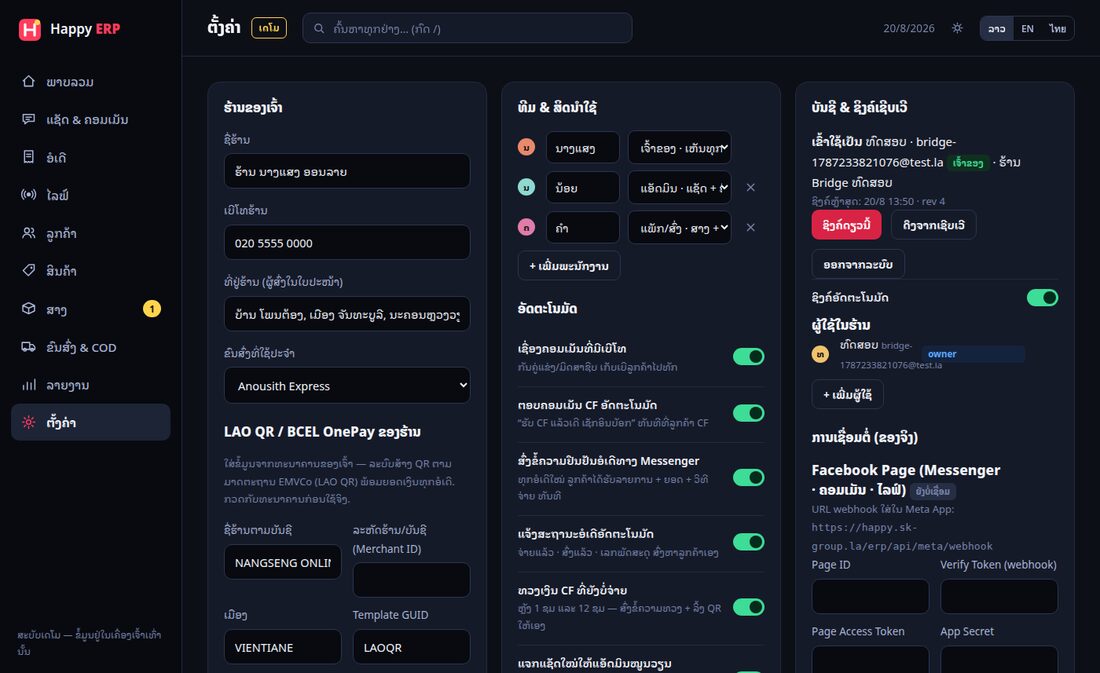
| Tab | What is in it |
|---|---|
| Shop | Your shop (name · phone · sender address on labels · usual courier · WhatsApp) · promises to customers / storefront policies · who we are · reports from Happy /care · 🏢 Page-care agency (12c) |
| Money & shipping | Get paid — LAO QR / BCEL OnePay (recommended: upload the QR your bank issued + the account number for slip checks) · exchange rates ≈฿/$ (books stay in kip) · order timers & restock lead time · delivery fees (default · province · district · free over · bus-terminal fee) · tax & accounting |
| Selling | Automation (Let Happy reply to customers · CF replies · live confirm · confirmations/status updates · payment reminders · chat round-robin · CAPI) · what the AI knows + 🧪 test room · AI money rules · keyword rules · quick replies · posts · reply example library |
| Marketing | Sales targets · campaigns/promotions · coupons · loyalty points · referral links · affiliates · marketing automation (Web Push: birthday · win-back · 7-day thank-you) |
| Agents | Shortcut to the Agents menu + the agent management guide |
| Team & account | Team & permissions (role · commission % · salary · 🕒 activity per person) · account & server sync (users · post/approve rights · 🏢 seats) · account security (2FA · sessions) · close account |
| Connections | Connect Facebook + several Pages · Telegram (shop bot · accept customers via the bot) · storefront/order page + your own domain · Meta CAPI · GA4 |
| System | Display (light/dark) · subscription & plans · backup & import (JSON or ZIP: JSON + orders/products/customers CSV) · recover & audit · API & webhooks · user guide · data |
On a phone the tabs wrap onto two rows so every tab is visible without scrolling sideways.
12bConnecting Facebook — one click, or by hand
Quick way: Settings → Connections tab → Connect Facebook → sign in → tick the Pages → done. About 30 seconds. You do not create a Meta app, copy a token or configure a webhook, and the system renews the tokens for you.
By hand: the fields below the button still work for a shop that prefers to use its own Meta app. You provide the Page token, app secret and verify token yourself.
12c🏢 Page-care agency — access without sharing a password
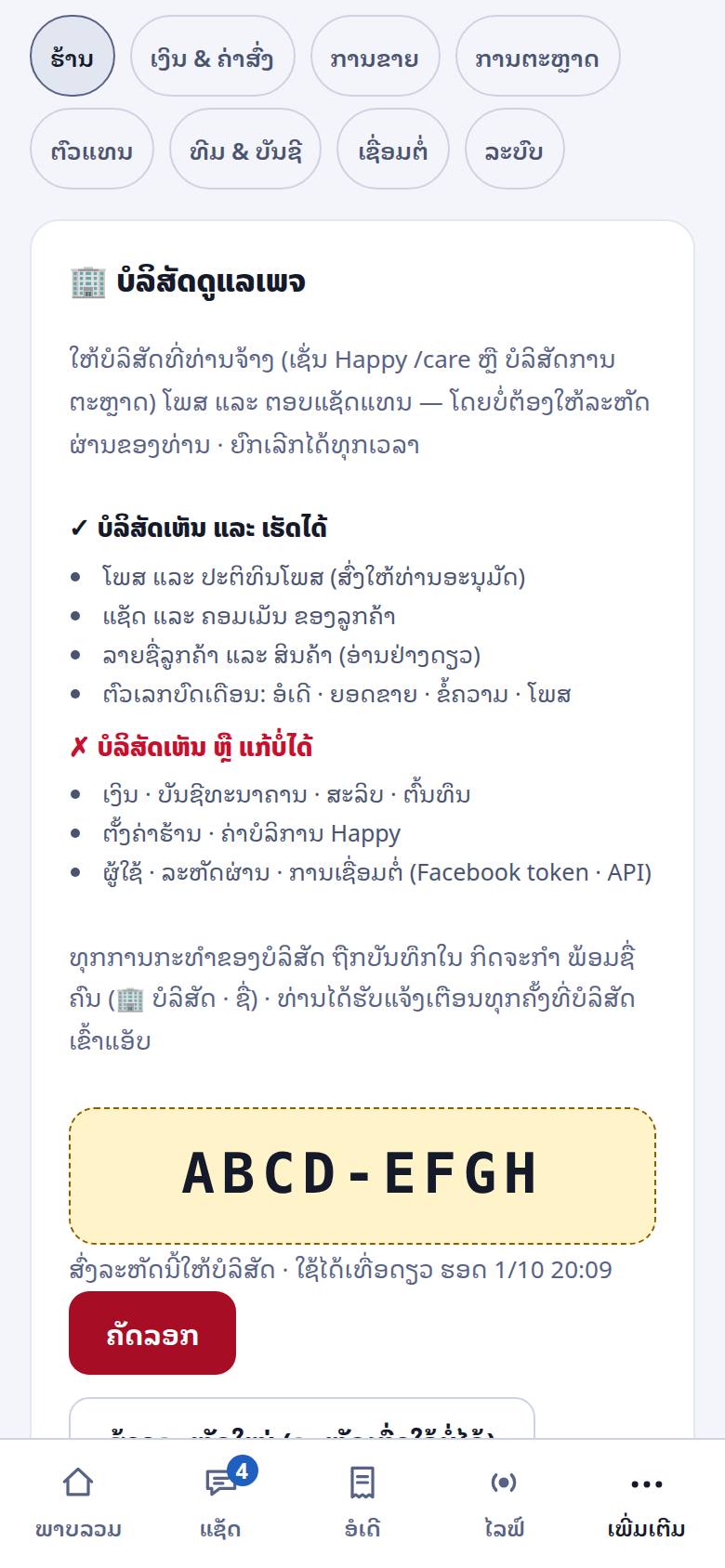
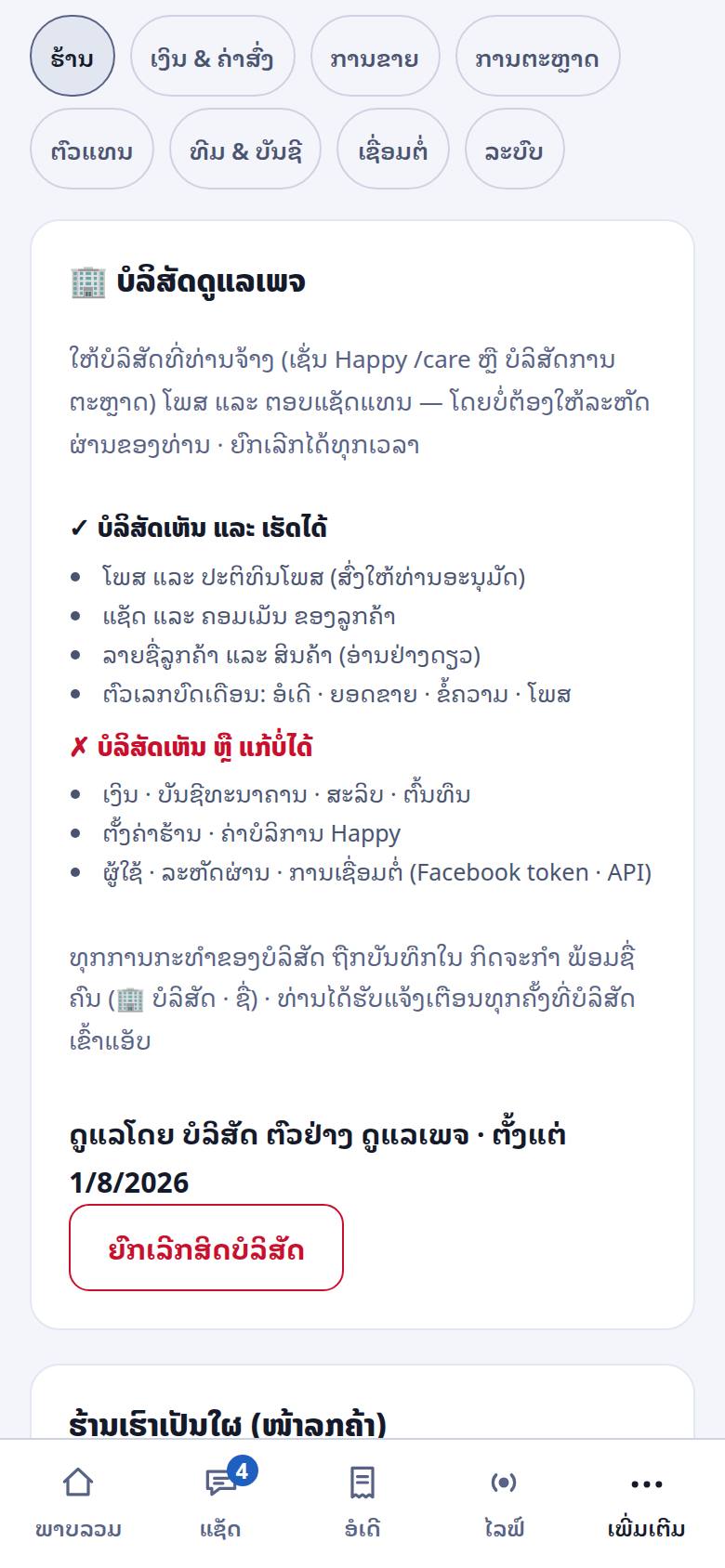
Hire an agency or outside admin (Happy /care, or a marketing agency on service.happyerp.la) to post and answer chats for you: you create a code for them, and they get a 🏢 seat with marketing rights only. No password to share, nobody to add as staff · only the shop owner sees this card.
- Settings → Shop tab → 🏢 Page-care agency → Create a code for the agency
- You get an 8-character code such as
ABCD-EFGH— shown in full only once · single use, valid 7 days · send it to the agency privately · lost it? New code (the old one stops working at once) - The agency enters the code on service.happyerp.la → the card changes to “Managed by … · since …”
- Revoke: Revoke agency access → confirm — effective immediately (the agency is thrown out of your app) · to reconnect you need a new code
| The agency can see and do | The agency can't see or change |
|---|---|
| Posts and the post calendar (sent to you for approval) Customer chats and comments Customer list · products · customers' order status (read only · no amounts) Monthly report numbers: orders · sales · messages · posts |
Creating/editing orders · money (order amounts · daily sales) · bank accounts · slips · costs Shop settings · Happy billing Users · passwords · integrations (Facebook token · API) |
- You always know: you are notified every time the agency opens your app (at most 12 hours per visit) · every action is logged in Activity as “🏢 agency · person”
- The seat appears in the user list (Team & account) as 🏢 Agency · marketing access with a revoke button — its password and role cannot be set (it is reached only through a one-time link from the agency)
- Posts drafted by the agency wait for your approval (4i) · shops managed by Happy /care find monthly reports and the post-approval link in Settings → Shop → Reports from Happy /care
- 1 shop = 1 agency · to switch, revoke the old one first, then create a new code · the new agency does not see the old agency's notes
- Want the agency to run ads or manage the Facebook Page too? Grant partner access through Business Manager (BM guide) — never give anyone your Facebook password
- Your Happy ERP subscription is still paid by the shop · the agency's fee is between you and the agency
13Several Facebook Pages in one shop
One shop can connect as many Pages as it manages. Messages from all of them land in the same inbox, each tagged with the Page it came from, and replies go back out through the right Page automatically.
The panel shows, per Page: total messages · unread · when the last message arrived · when it was linked. That is how you tell a Page that is genuinely working from one that is just listed.
14Account & server sync — from demo to real
Until you create an account, everything lives on the device. Once you do, data syncs to the server and the shop can be opened from any phone by anyone on the team.
- Auto-sync saves a few seconds after each change
- Conflict — if two devices changed the same thing, the newer one wins and a rescue copy of what would have been lost is kept on the device that lost
- Roles (enforced by the server, not just hidden buttons): owner everything · admin chats · orders · customers · products · stock · delivery · reports (not shop settings, team, automation, delivery fees, coupons) · packer overview · orders · products · stock · delivery (receive · count · PO · paid → packed → shipped → delivered or returned · COD reconciliation · no chats, live, customers, reports or settings · products: stock and reorder point only) · 🏢 agency seat overview · chats · posts (drafts) · customers and products read only (12c)
- Read only is said out loud: screens a role cannot edit show a 🔒 “read only — your role can view but not edit” bar, fields are locked and save buttons hidden — nothing looks saved and then silently disappears
- Passwords: change your own under Change password (other devices are signed out) · forgot it → sign-in screen › Forgot your password? → type your email → a reset link (valid 15 minutes) goes to your personal Telegram (if linked) or the shop's Telegram · the owner can also set a new password for staff
- 2FA: Team & account → Account → Account security — an OTP via Telegram on every new device (connect the shop's Telegram first) · turning 2FA off or changing the Telegram room/bot requires your password
- No connection? The app is read-only until you are back online (red bar at the top) — so two devices never overwrite each other
- Close account — Settings → Team & account tab → Account. Facebook is disconnected immediately and all data is deleted within 30 days. Cancel any time before then
15Telegram bot — one set of data
Connect a Telegram group and the shop gets order alerts, daily summaries and stock warnings there. The bot reads the same data as the app — it is another window onto one system, not a second system.
- Order alerts as they arrive, with the amount and the channel
- A closing summary at the end of the day
- Discount requests: when the AI is asked for a discount it stops and asks the owner in Telegram, and the answer flows straight back into the chat with the customer
- Buttons (shops with their own bot): ✅ Confirm order under each new-order message · approve / send back post drafts (4i) · changing the shop's bot or room requires your password and the old room is told
- Ask it questions from the shop room:
ຍອດ(sales) ·ສາງ A1(stock) ·ຄ້າງ(COD outstanding) ·ອໍເດີ 1042·ລໍຕອບ(waiting customers) ·ບົດ(advisor)
Customers can message your shop on Telegram (new 24 Sep)
- Set up the shop's own bot first → Settings → Connections → Telegram → switch on Accept customers via this bot
- Share
t.me/yourbotin your bio · posts · QR — customers write straight in, no Meta involved - The AI answers around the clock (3b) · orders work like web chat (storefront prices) · staff reply from Inbox, tagged Telegram
16Connecting other systems (API)
For shops that want their orders inside their own accounting or delivery software.
- API keys (
hpk_…) — created in Settings → System tab → API & webhook - Outbound webhooks — we POST
order.created·order.status·order.deletedto your URL, each signed so you can verify it came from us - Only
place_order()creates orders, so anything built on the API follows the same stock and money rules as the app
17Shortcuts & tips
- / — jump to search from anywhere
- Type "CF A3 x2" in a comment or chat and the order builds itself
- Settings → System tab → Backup — export a file before any big change
- Deep links work:
#settings/moneyopens Settings straight on the money tab - On a phone, the ⋯ More button in the bottom bar holds the modules that do not fit: in-store sales · stock · products · customers · delivery · advisor · reports · settings
18FAQ & troubleshooting
Customer messages are not arriving
- Is the Page still connected? Settings → Connections tab shows the status per Page
- Was the token revoked on Facebook's side? Reconnect — it takes seconds
- Remember the 24-hour rule: outside that window Meta does not allow the reply, and the app will say so
Stock looks wrong
Open Stock → history for the item. Every move is recorded with a reason and a time, so you can see exactly where the count diverged. Do not "correct" the number by typing over it — do a count, which records the difference properly.
The AI answered something wrong
The AI only ever sees price, stock, delivery fees and the product knowledge you typed. If it said something wrong, the usual cause is stale product knowledge. Fix the product, and turn the assistant off meanwhile (Settings → Selling tab → Automatic).
I created my account and my demo data went with it
A new shop starts empty — the demo on your device is not uploaded, and since 25 Sep no sample chats, staff or expenses leak in either. If an older account still shows sample rows, delete those rows or ask support@happyerp.la to help.
Customers say the AI is not answering
Check three things: is Let Happy reply to customers on (Settings → Selling → Automatic) · was the bot paused for that room (chat header) · did today hit the daily cap (the customer's chat header says “an admin will reply” — see Reports → Web & Telegram chat). Messenger/comments need a connected Page first (12b).
Do I have to give an agency my password?
No — create a code in Settings → Shop → 🏢 Page-care agency. They never see money, costs or settings, and you can revoke at any time (12c).
Two people edited at once and something is missing
The newer change wins, and the device that lost keeps a rescue copy — Settings → System tab → Restore & audit.
Who do I contact?
Help center (FAQ + 💬 report a problem, no login) · system status · email support@happyerp.la or
phone/WhatsApp +856 20 5226 6557.